
Overview
FAQ BOT is a chatbot designed to provide instant responses to frequently asked questions. It utilizes natural language processing and machine learning to understand user queries and generate appropriate answers. By automating responses to common inquiries, FAQ BOT saves time for both users and customer service representatives. It enhances customer satisfaction by providing quick and accurate information, improving overall user experience.
Easy to setup, the FAQ Bot uses the information saved in your ‘My Account’ Settings and displays that to your guests.
Not only that, the FAQ Bot allows your guests to:
1. Explore Menu
2. Make reservations
3. Edit reservations
4. Cancel reservations
5. About Us – Check out details about your business (such as description, business hours – that are saved in My Account)
Note: We will help you integrate this bot on your website!
Setup Screen
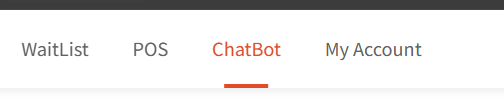
- Click / Tap on “Chatbot” Tab in the header
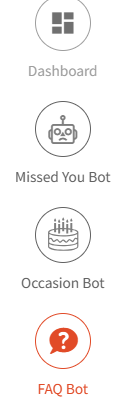
- Click / Tap on “FAQ Bot” in left menu
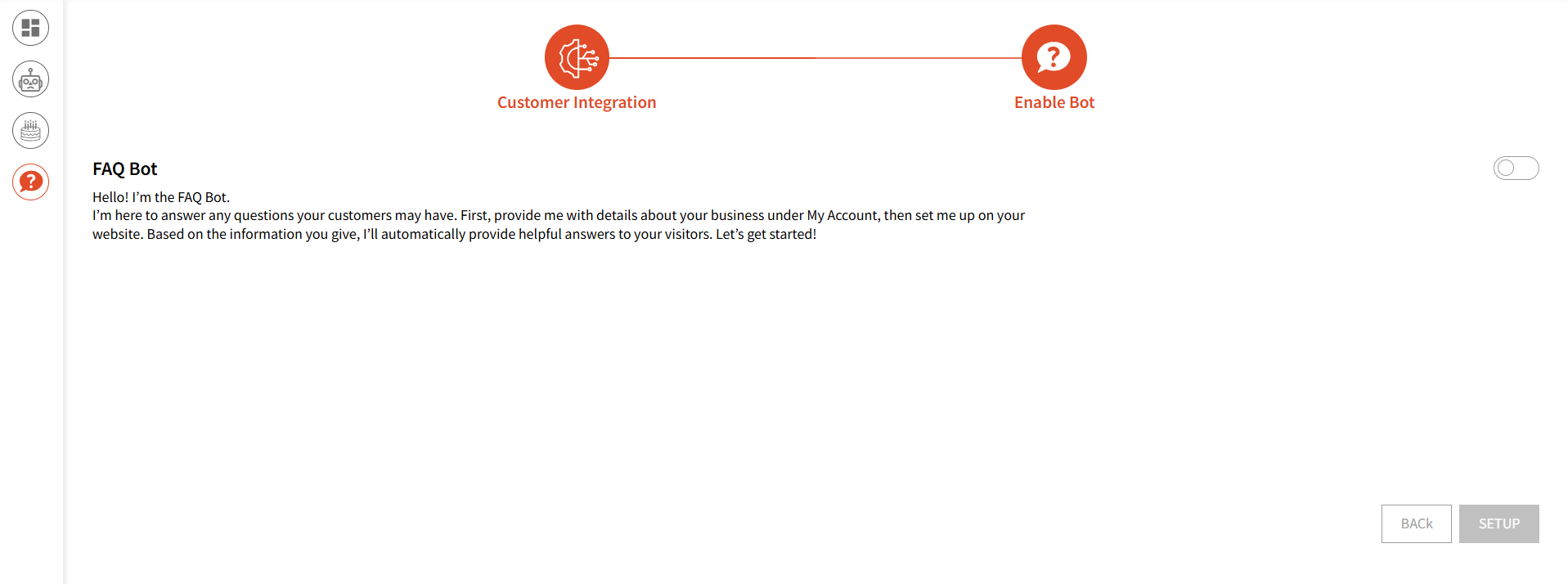
- User can click/ Tap on “Setup” button
Integration Screen #
- User can move on to the first step of setup – ” Integration ”
- User can select the system they are using: “Open Table” “Clover” “Square” “Retailboon” Except for Retailboon, if the user picks any of the other fields, they can then enter their API key and click the “Next” button to be redirected to the Enable bot screen.Note: We are working on making integration work with these 3rd party providers mentioned above.
Enable Bot Screen #
- User can move on to the Second step of setup – ” Enable Bot “
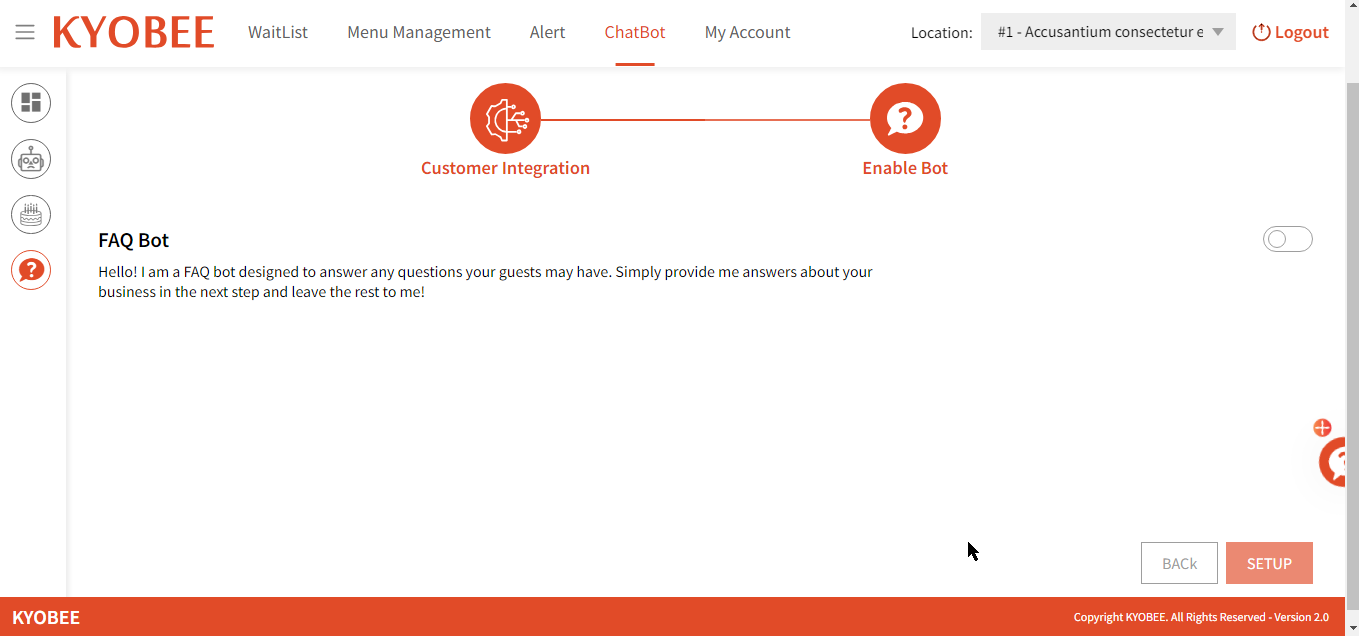
- User can enable the bot by clicking on the “Toggle Switch” and then click the ” Setup ” button and back to indirect to the Integration screen
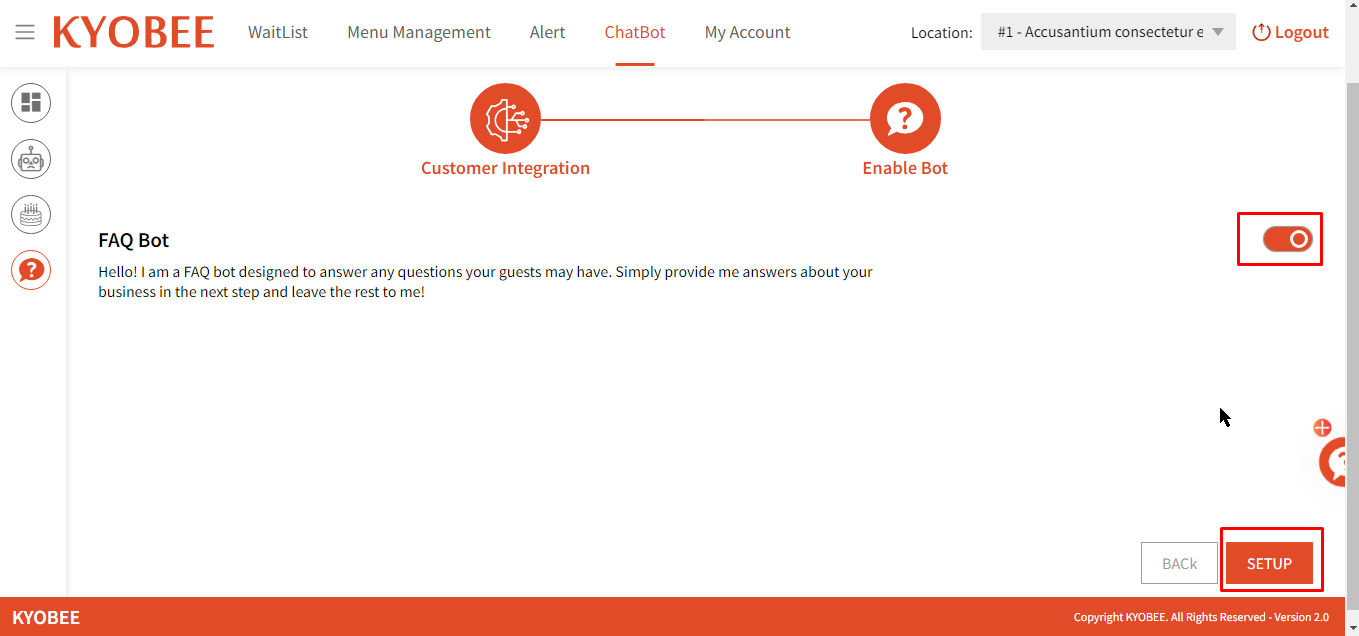
- User Click on setup button show the Success message
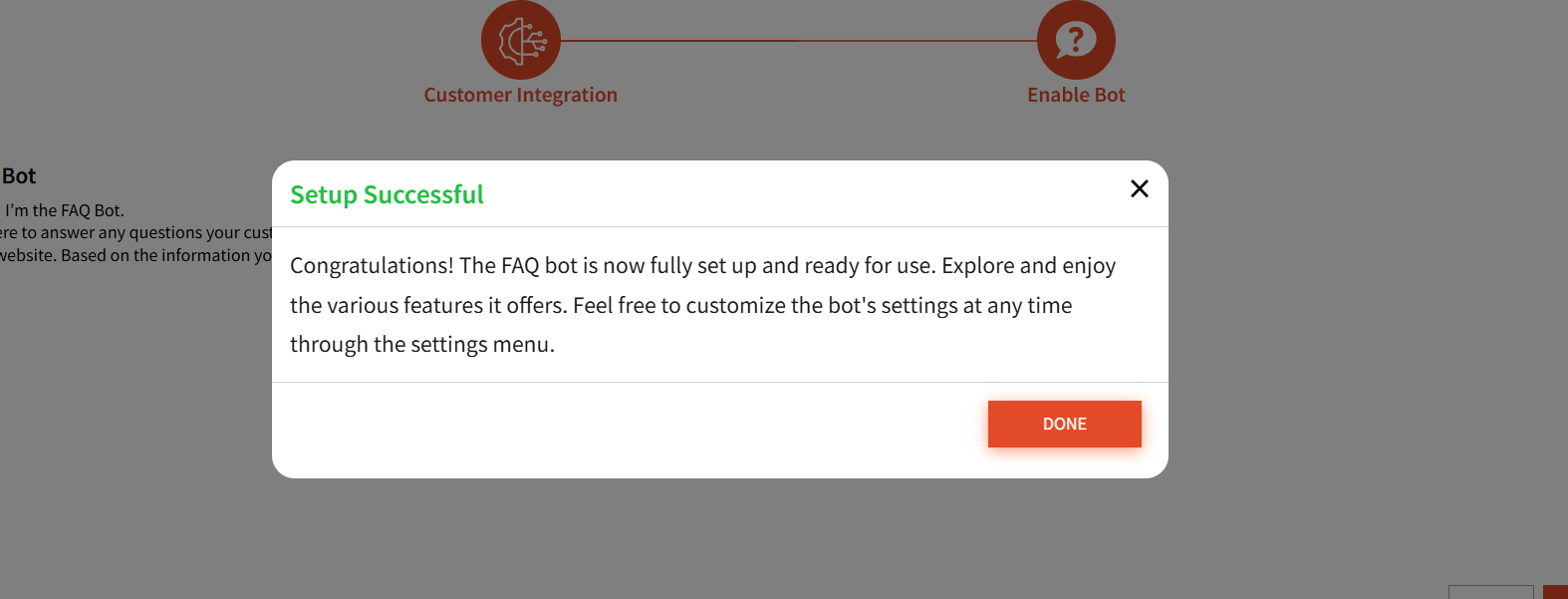
Once it is setup, the FAQ Bot triggers a message to the guests 1 day or 7 days before their booked reservation (whatever is applicable) with a link using which the guest can interact with it.