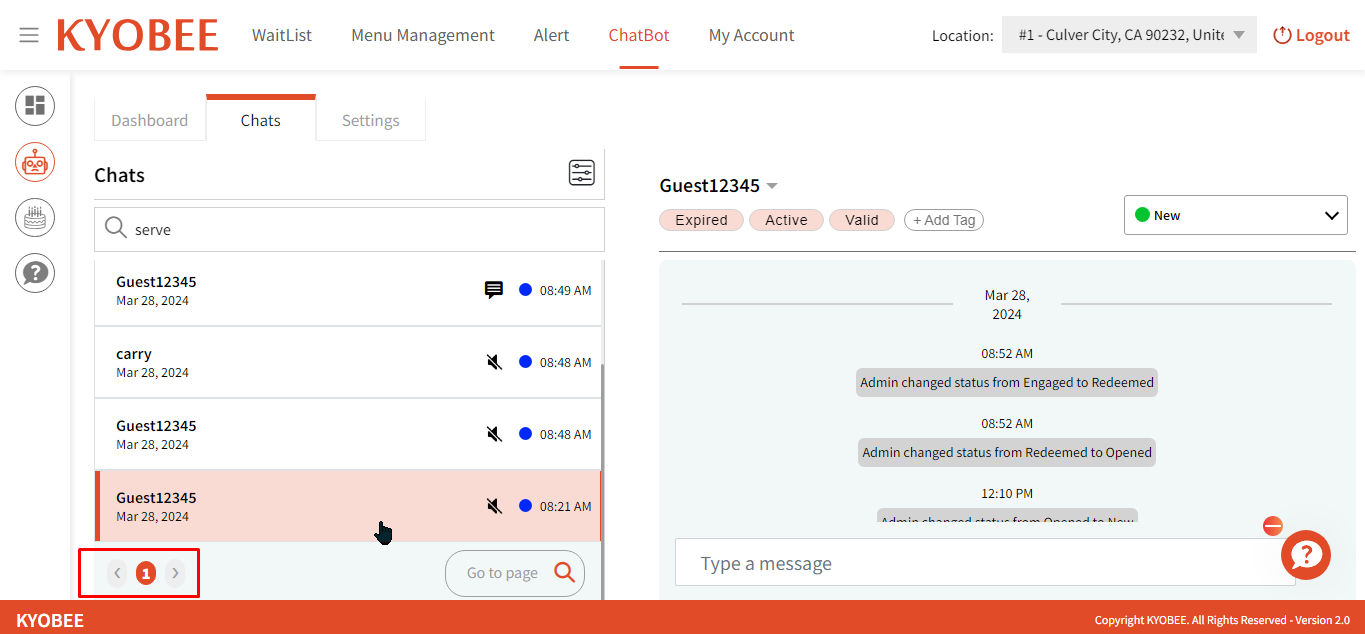
- User can click on “Chats” tab, and they are shown the chat screen
This will show you the full chat including when the bot link was sent to a particular customer.
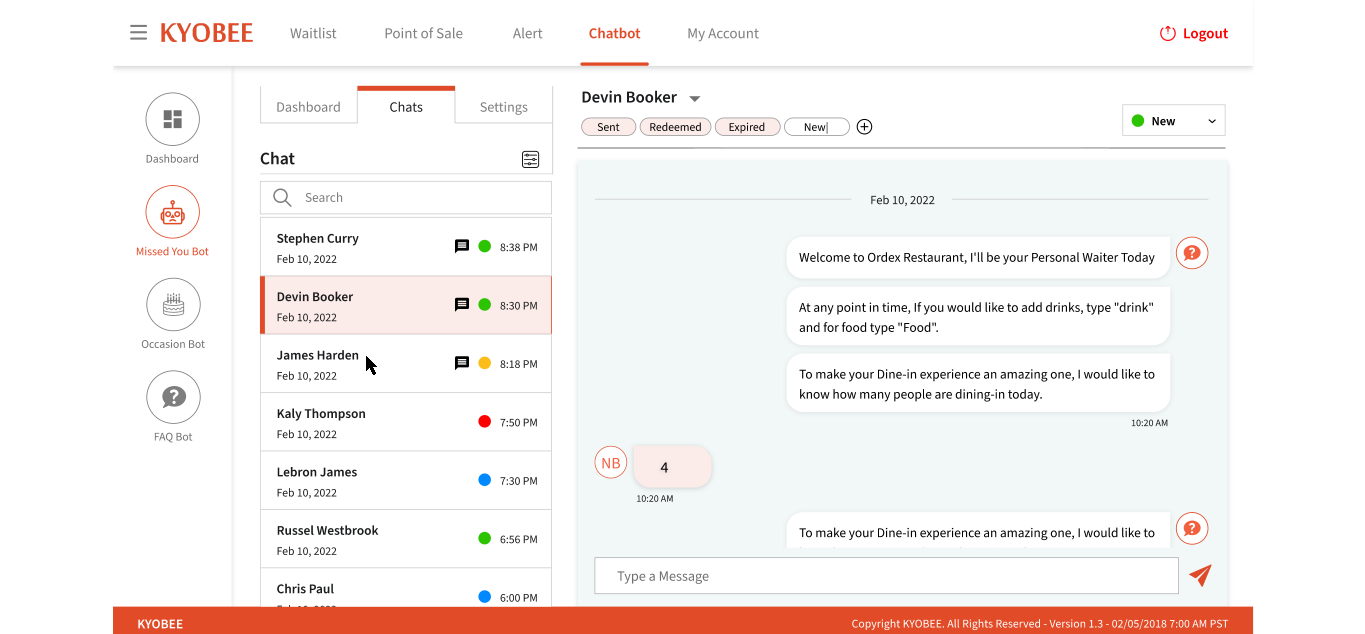
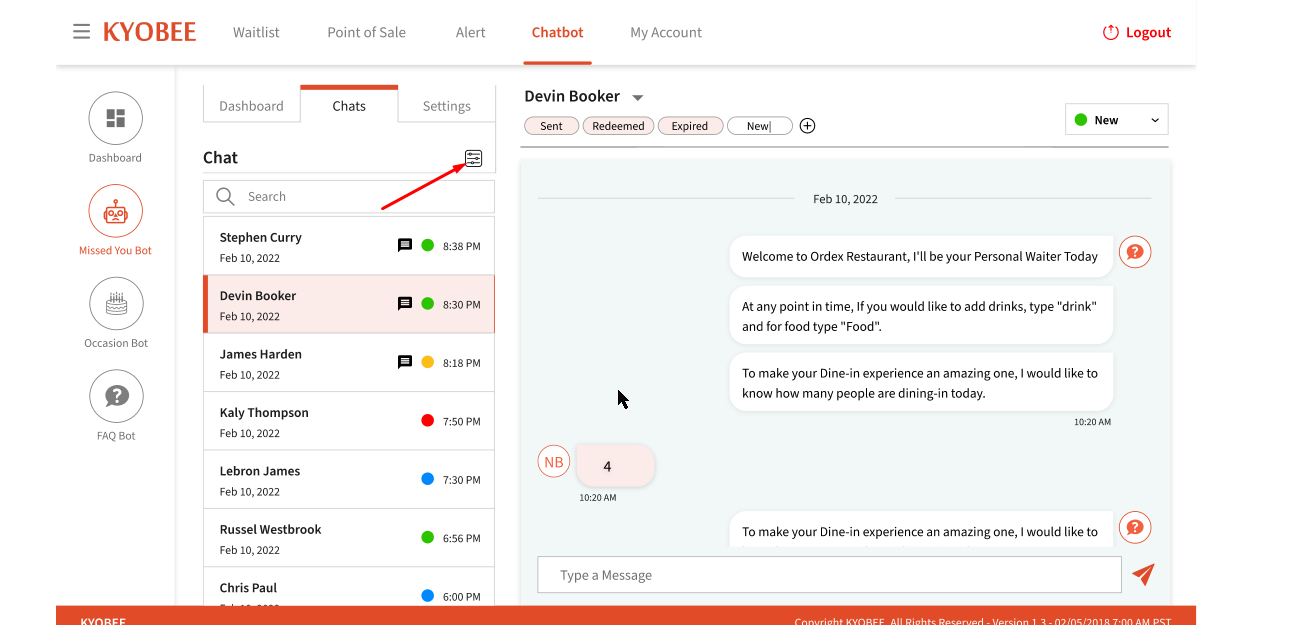
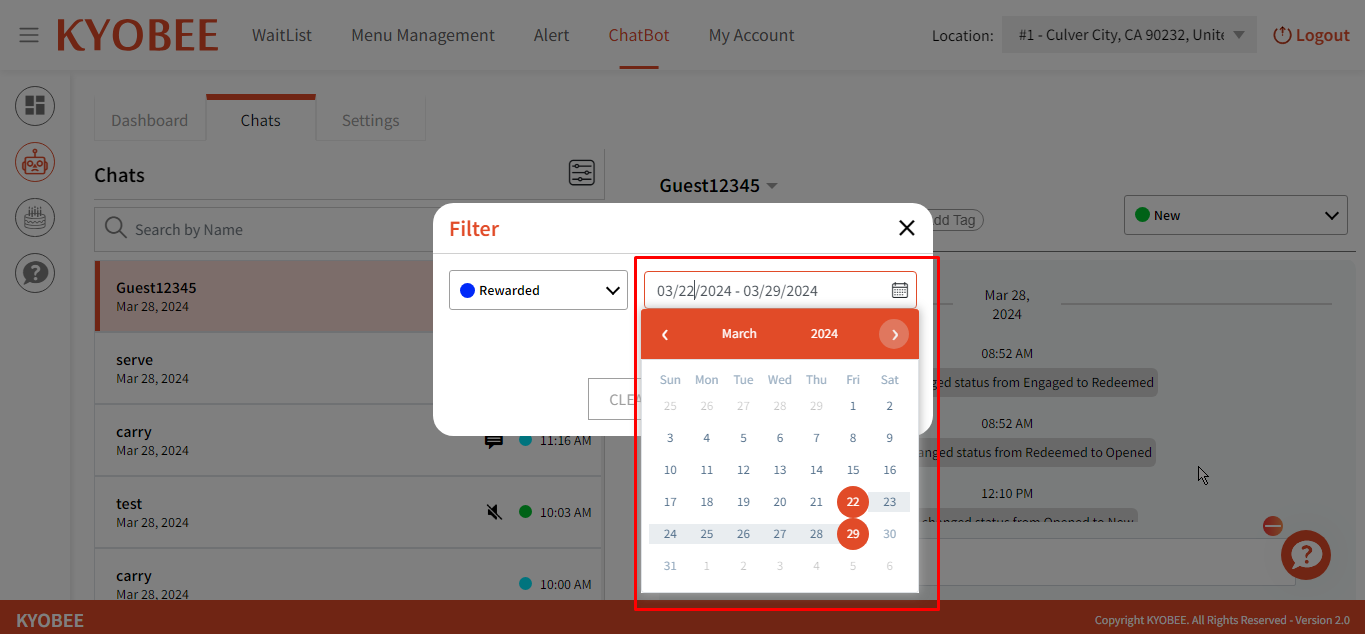
- Click / tap on the “Filter” icon. A pop-up box opens, and the user can see the two options: 1.”Status” Dropdown 2.”Date” dropdown
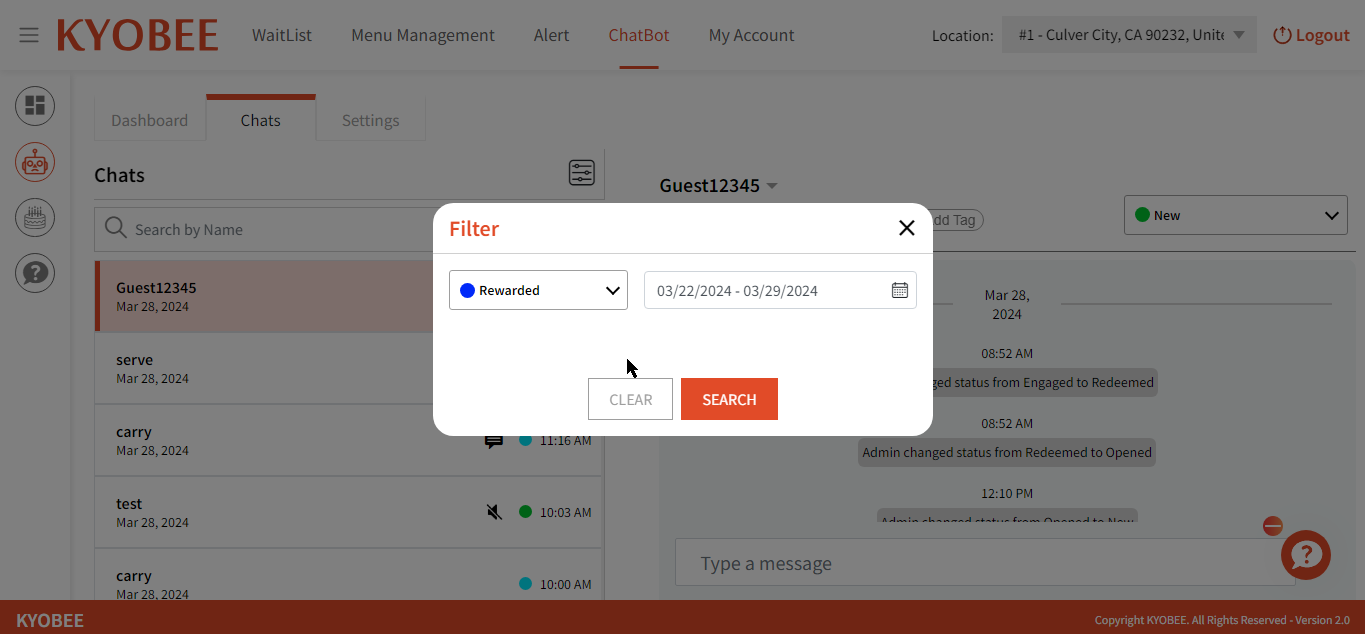
- User can click on the “status” dropdown to filter accordingly.
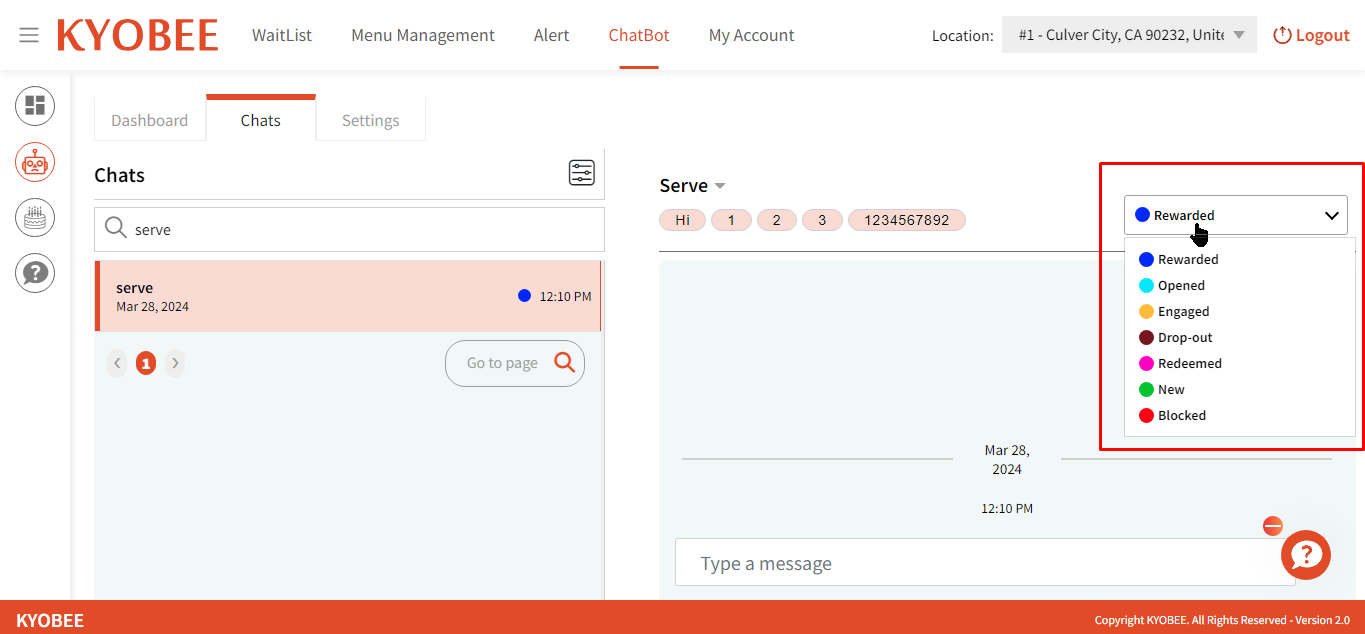
You should mark a customer ‘Rewarded’ when a guest presents the reward message at your business.

- User can click on the “Date” dropdown and select any date from the dropdown that they’d like
- User can click on ” Clear ” button to revert any changes
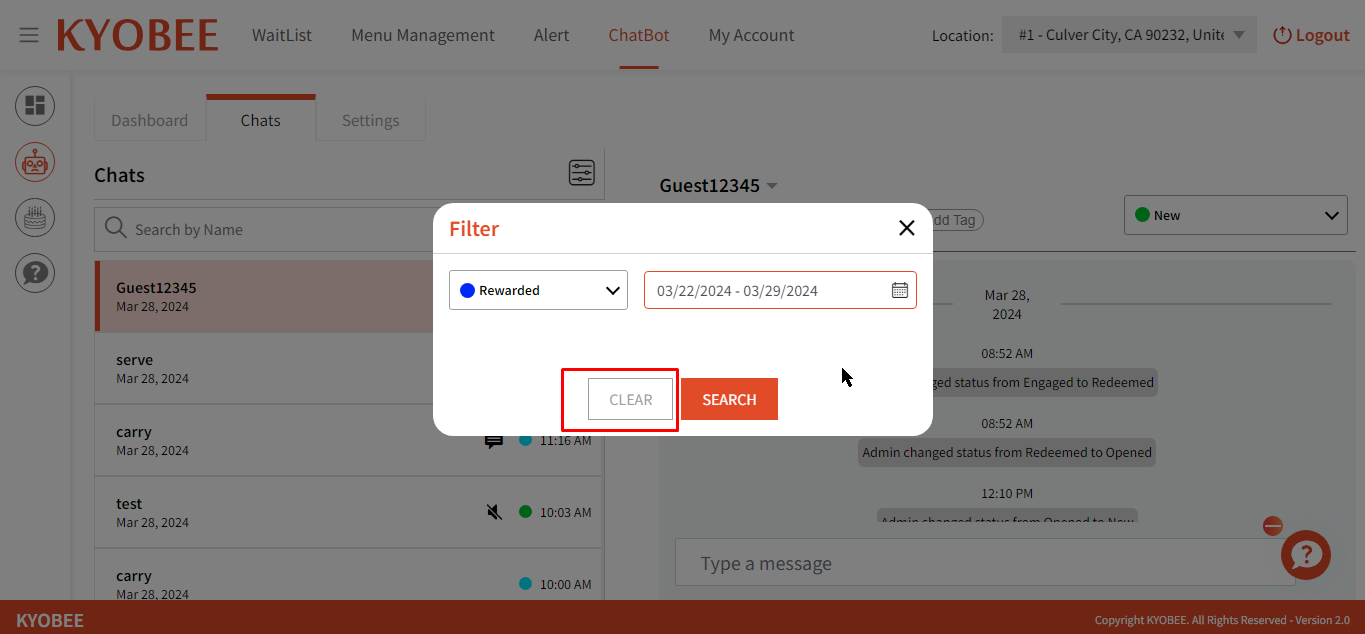
- User can click on “Search” button to search according to the parameters

- User can search using a name

- User can update status manually using the dropdown shown below as well:
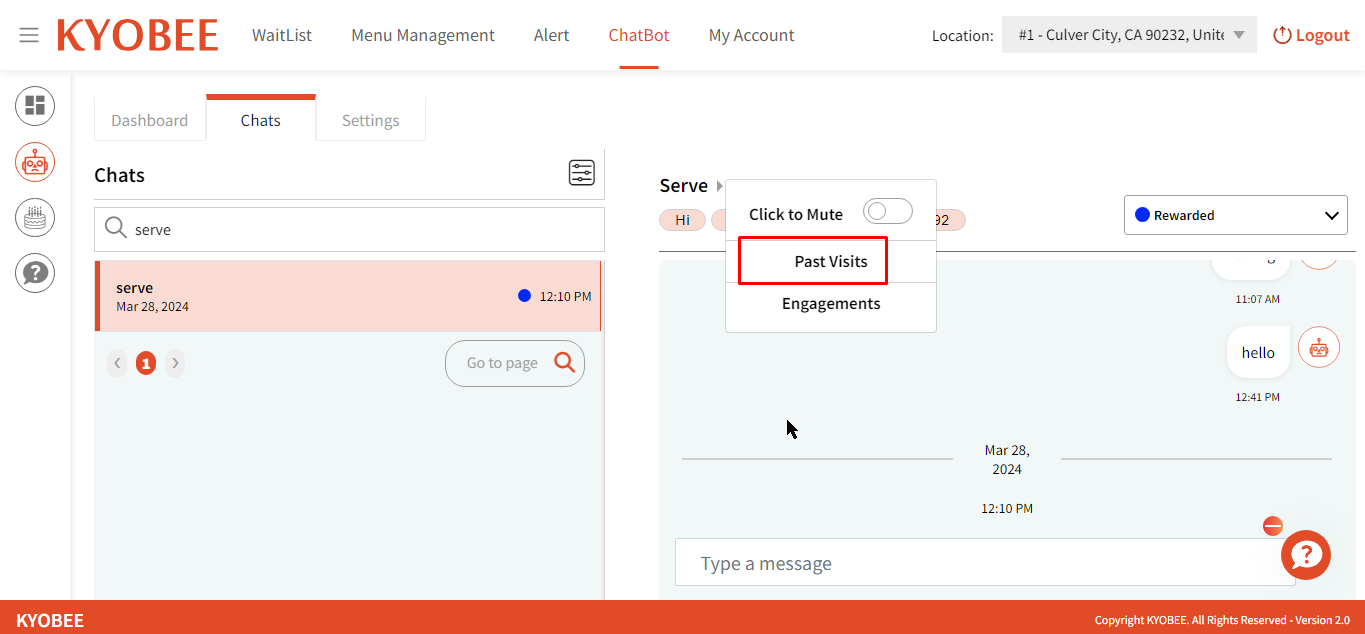
- User can click on the “Username” dropdown, and the user can see the following options: 1. “Mute toggle button” 2. “Past Visits” 3. “Engagements”
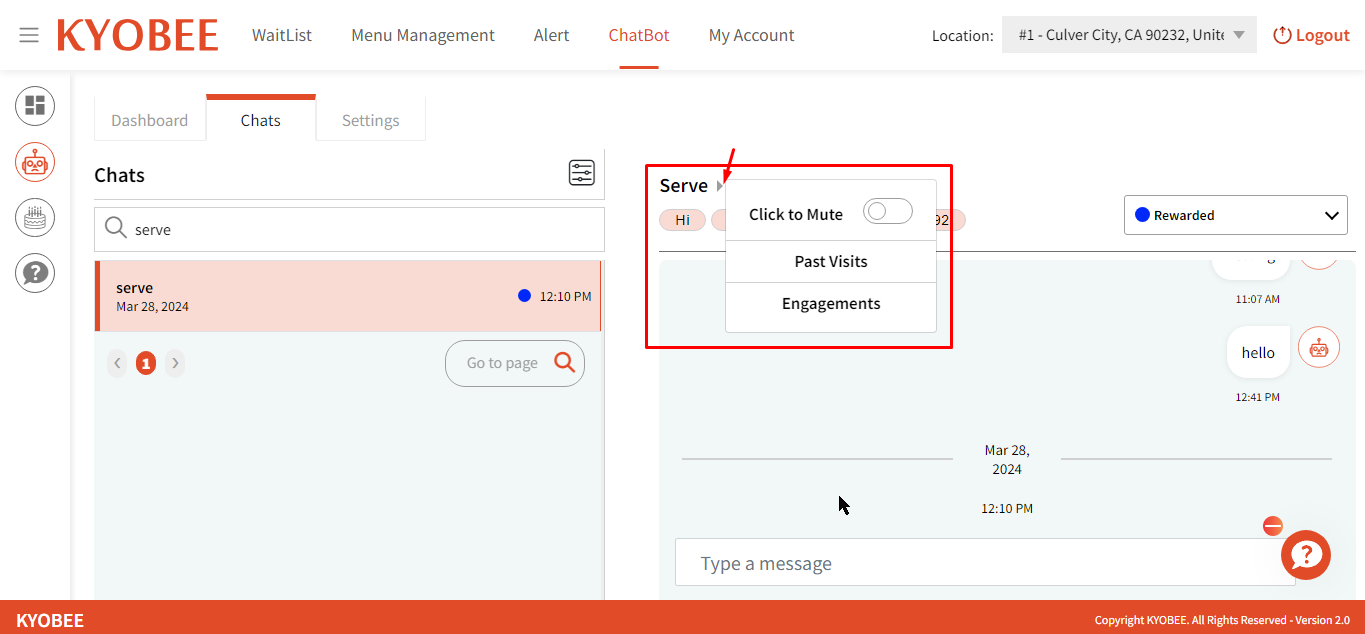
- The “Mute” toggle button can be clicked by the user in order to stop any messages from the user.

- User can click on “Past Visits”, A pop-up box will open. User can see the “No of Party,” “Check-in Date,” and Check-in time” table
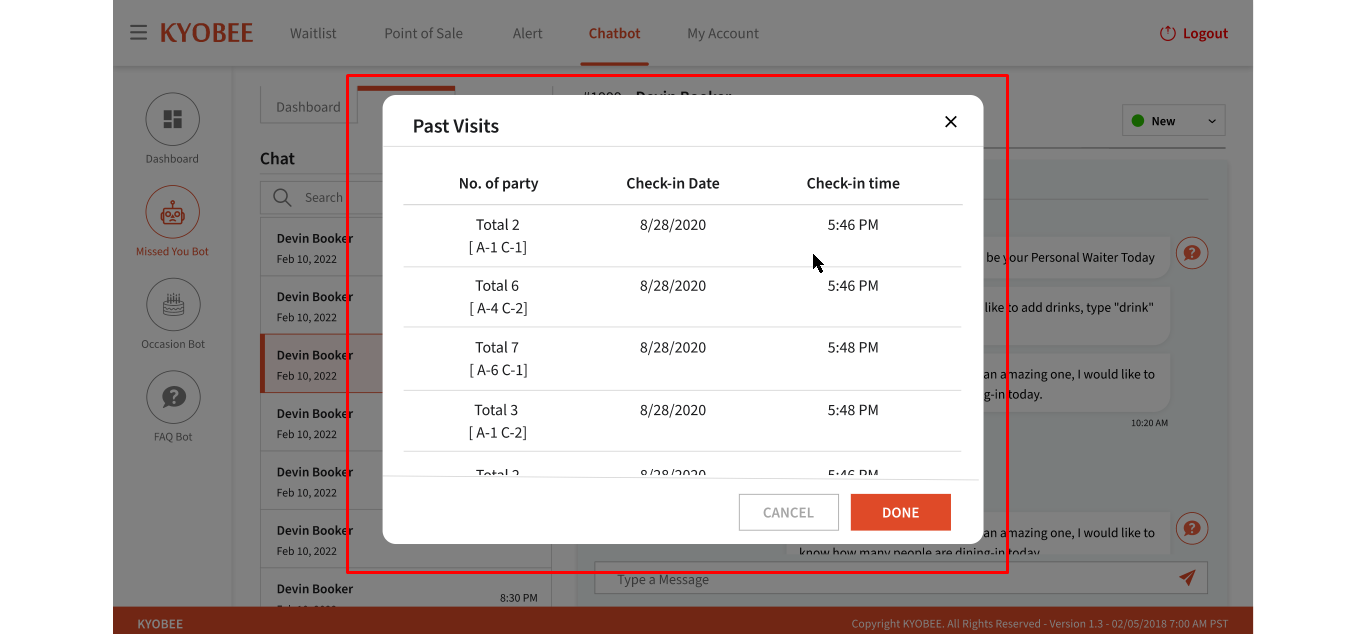
- User can click on “Cancel” button to close the pop up

- User can click on the “Done” button to close the table

- User can click on “Engagements”, A pop-up box will open. User will be shown the radio buttons with options: 1. Missed You Bot 2. Occasion Bot 3. FAQ Bot
Using this, you can go to the guest’s chat for another bot (if they have one).

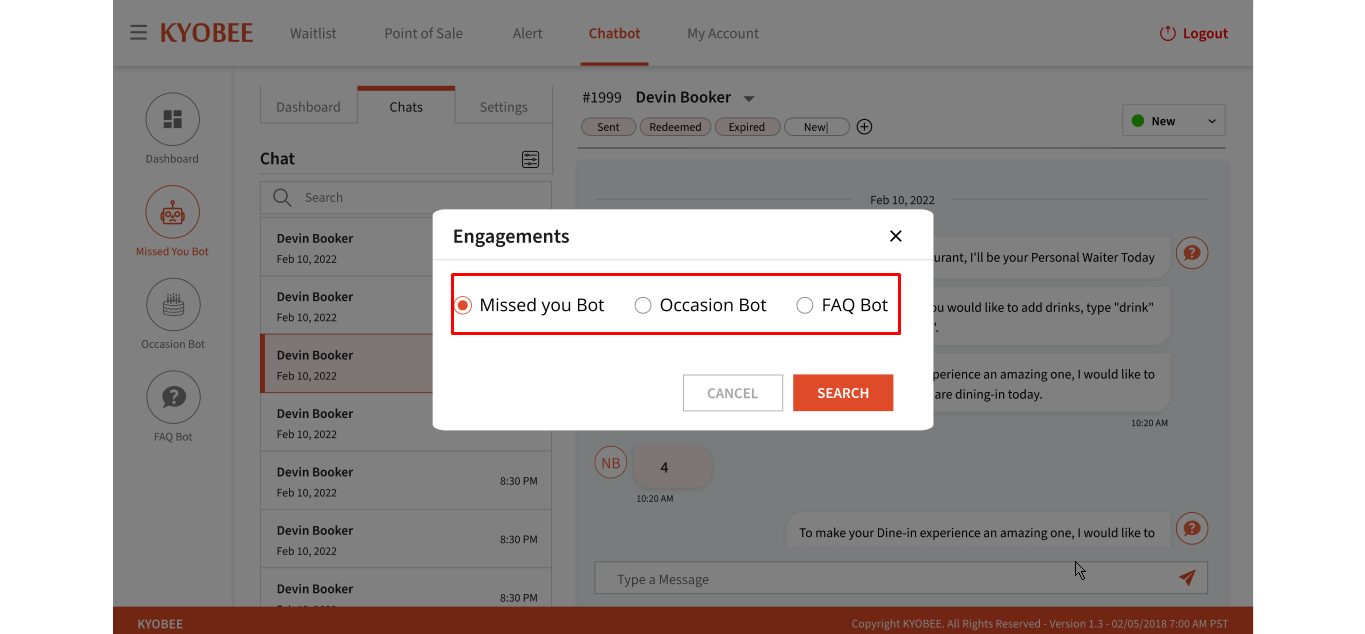
- User can click on “Cancel” button to close the pop up

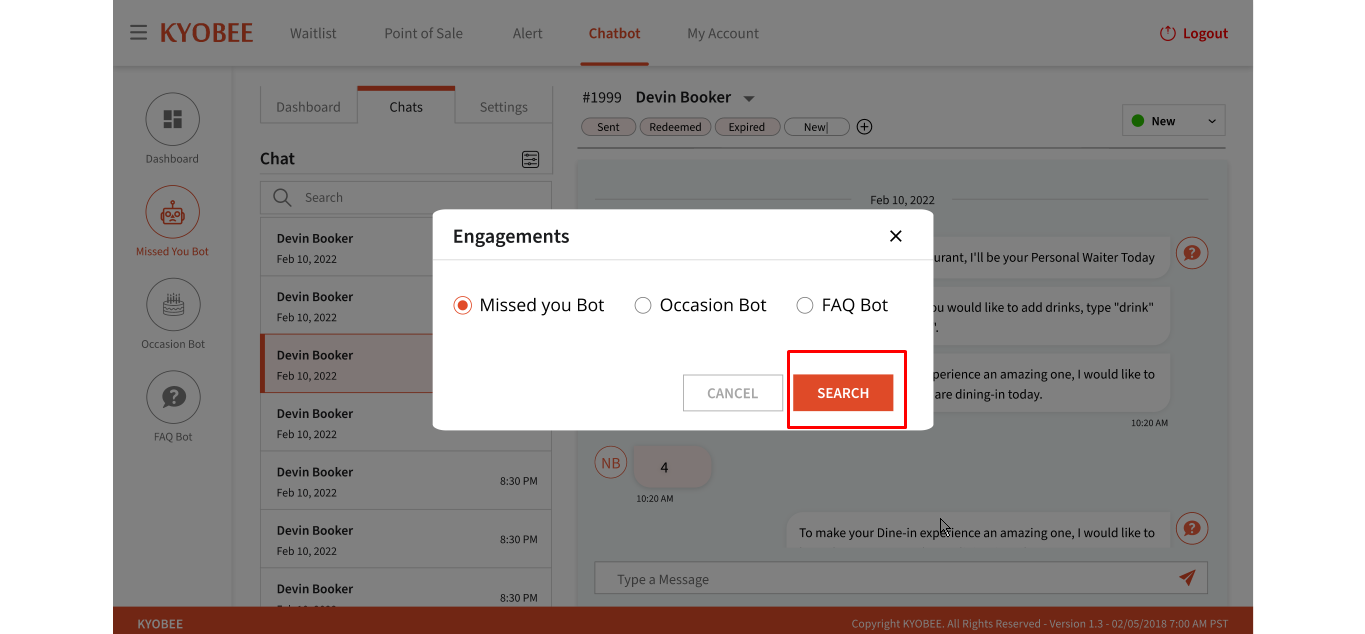
- User can click on the “Search” button to search as per the desired Engagement
- User can see the added tags to the guest, these are mainly for you to help differentiate guests.
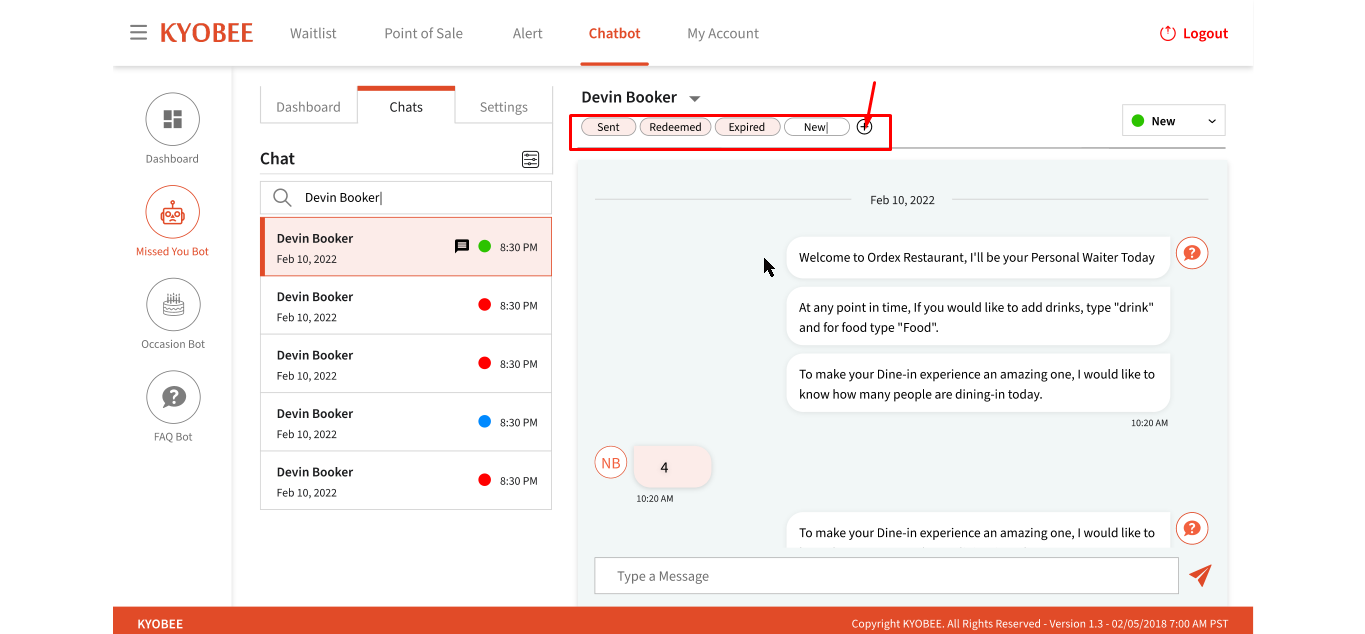
You can also start a custom conversation with a guest. Though, doing this will stop the bot from engaging with guest. So when you click on a ‘Type a message’ field, you will be shown a warning message.
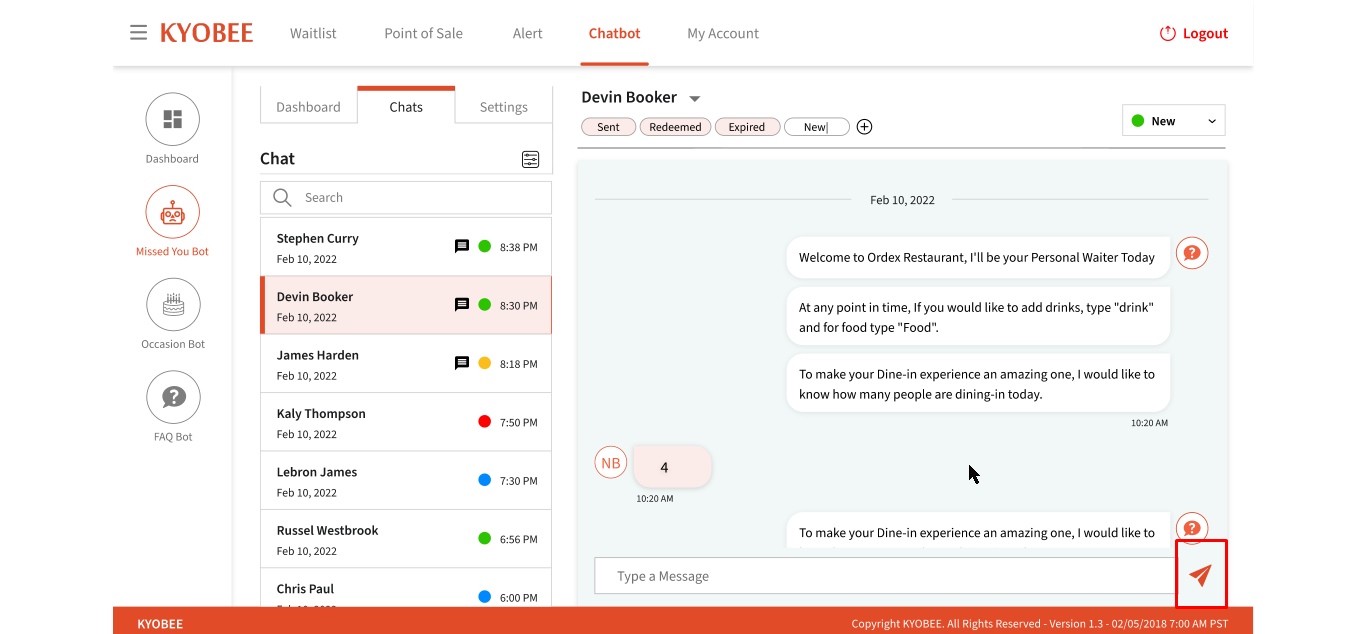
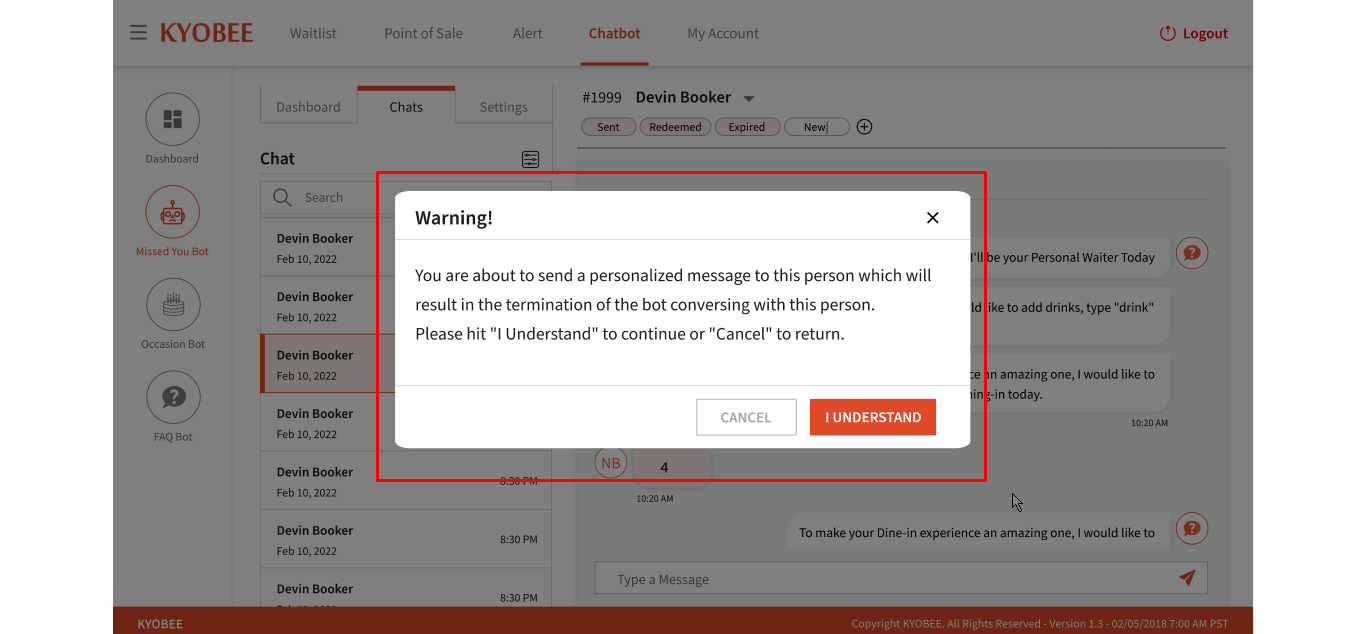
- When the user clicks on the “I Understand” button in the warning pop-up box, the user can start the conversation.

- User can type the page number in the go-to-page search bar and jumped to particular page